PicPur
<>Overview
A desktop app for Windows that takes the pile of photos and videos you get after plugging in an iPhone and sorts it into folders that actually make sense. I designed it and built it myself.
Built with
- Figma
- After Effects
- Illustrator
- Claude
- Python
- Role
- Solo product designer
- Scope
- UX/UI design, interaction design, motion graphics
- Platform
- Windows desktop app
- Context
- Personal project
Case study
A few moments that carry the whole flow
Six parts of the project. Jump to any of them, or scroll through in order. Click a screenshot to view it full size.
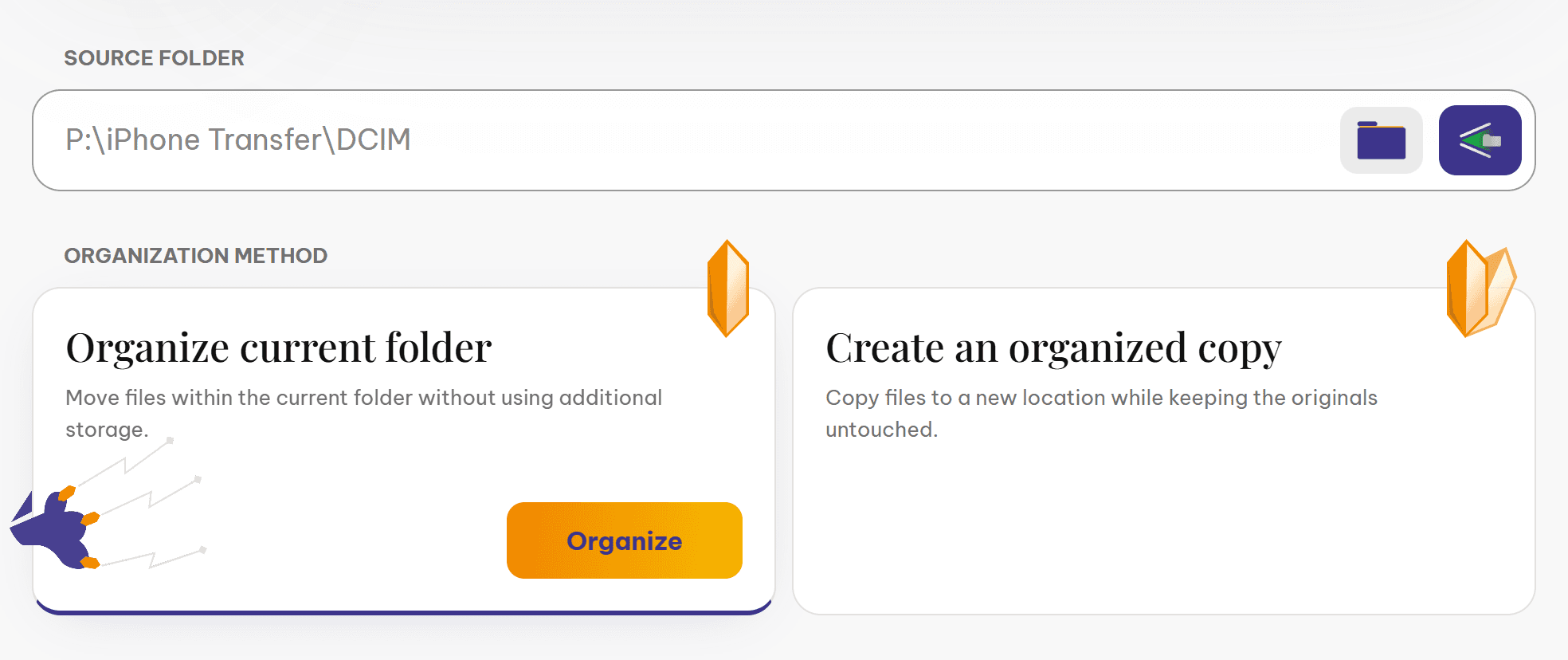
Getting photos off an iPhone takes way longer than it should
Most tools make this harder than it needs to be. The Windows Photos app can do it, technically, but it crawls. Hand it a few thousand files and you are going to sit there waiting on it. And if you are on Windows there can be a lot of friction when trying to find the right tool.
My approach: plug the phone in, pull the files straight out of the DCIM folder, and let the app sort them by type and year. Nothing gets imported first, which is exactly why it is fast. No thumbnails get generated, nothing gets indexed into a database, it just reads the files off the mounted drive and moves them where they belong. The catch is that you have to know DCIM exists and how to get to it, instead of opening something that goes looking for your photos on its own. I think that is worth the speed, but it is a real cost.
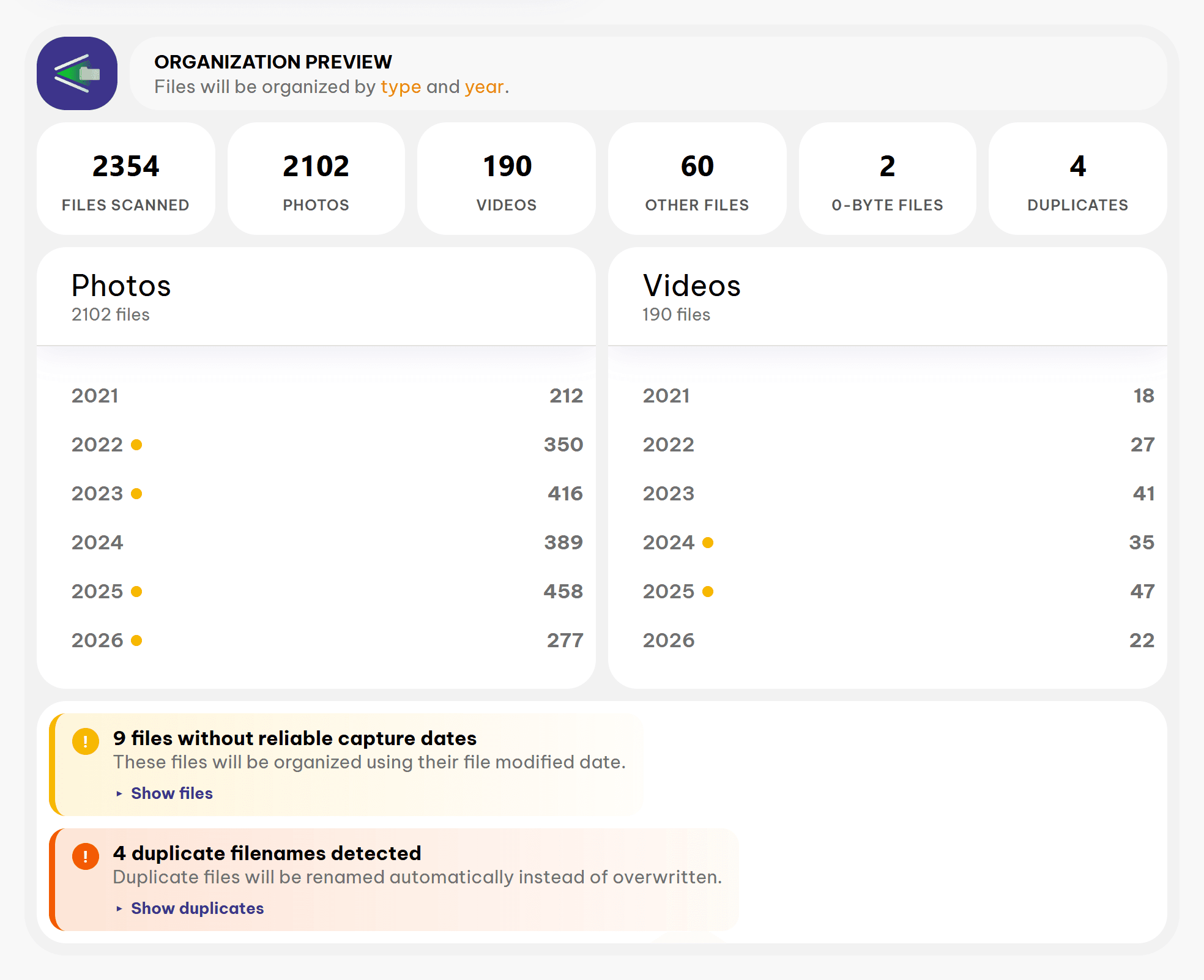
Show me what’s going to happen before it happens.
Instead of an organize button that just goes, the app scans first and tells you what it found before anything moves: how many photos, how many videos, which years they landed in, and anything that looked strange along the way. That way you can check it looks right before you let it touch your actual photos.
Move and copy are two different buttons, not one setting.
I could have used one button with a “keep originals” checkbox next to it, but that’s easy to miss. Whether your original files stay put or get moved is the main choice you’re making, so I gave it two separate cards instead. Each one says plainly what it does, and the move option looks different so you don’t pick it by accident.
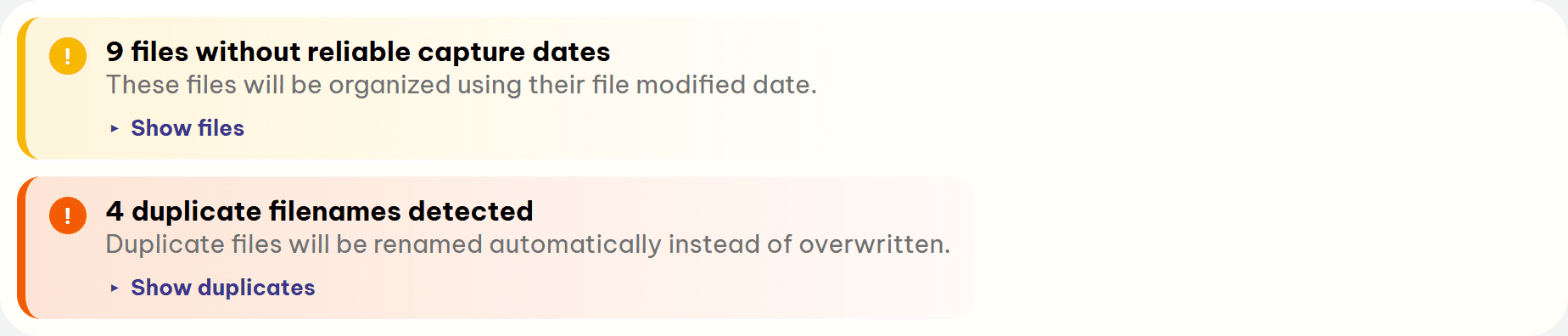
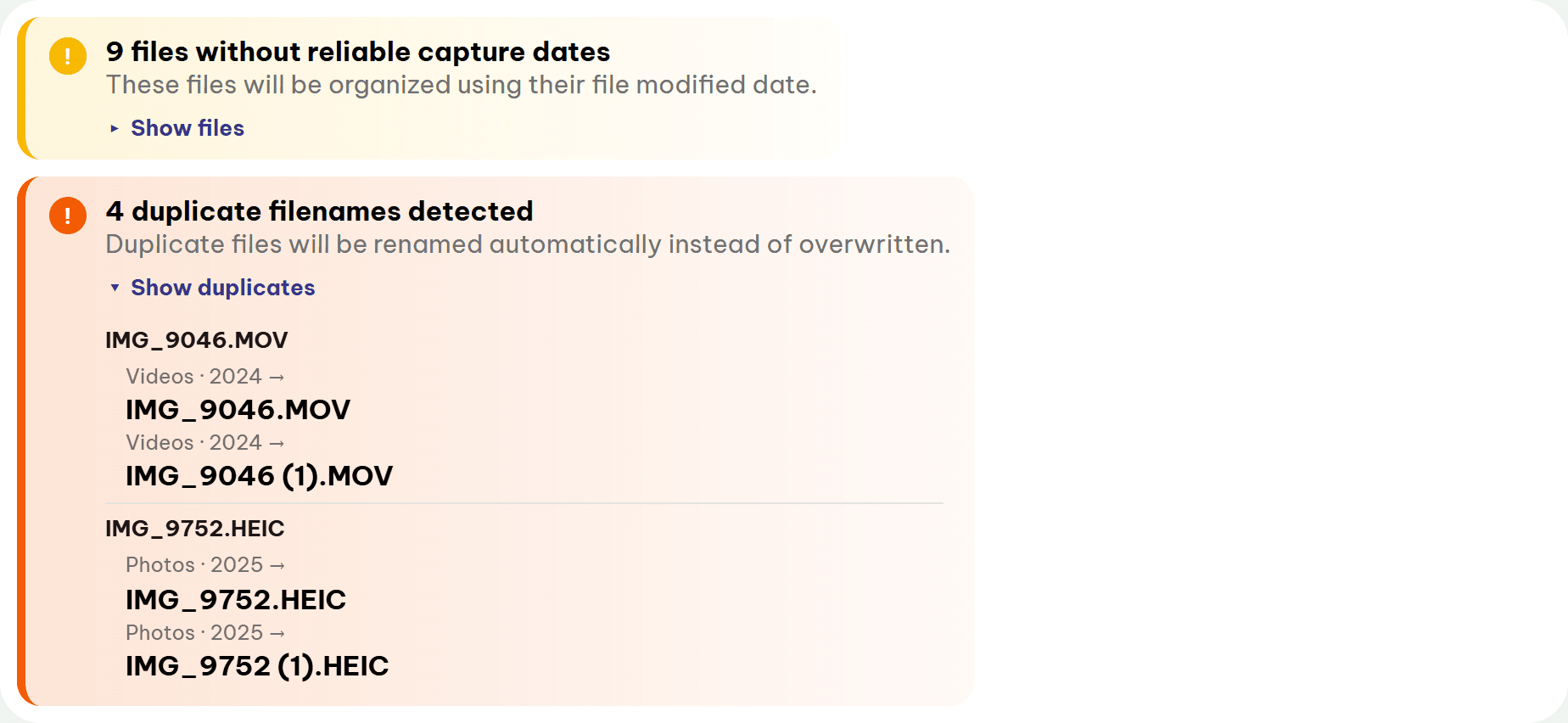
Not every warning deserves the same amount of alarm.
A file with an unclear date isn’t the same problem as a file that’s about to be renamed, so they get different labels. Yellow means the app had to guess which year to put it in. Orange means the filename is changing. The different colours make it easy to tell them apart so neither one gets missed.
Guessed yearFilename change
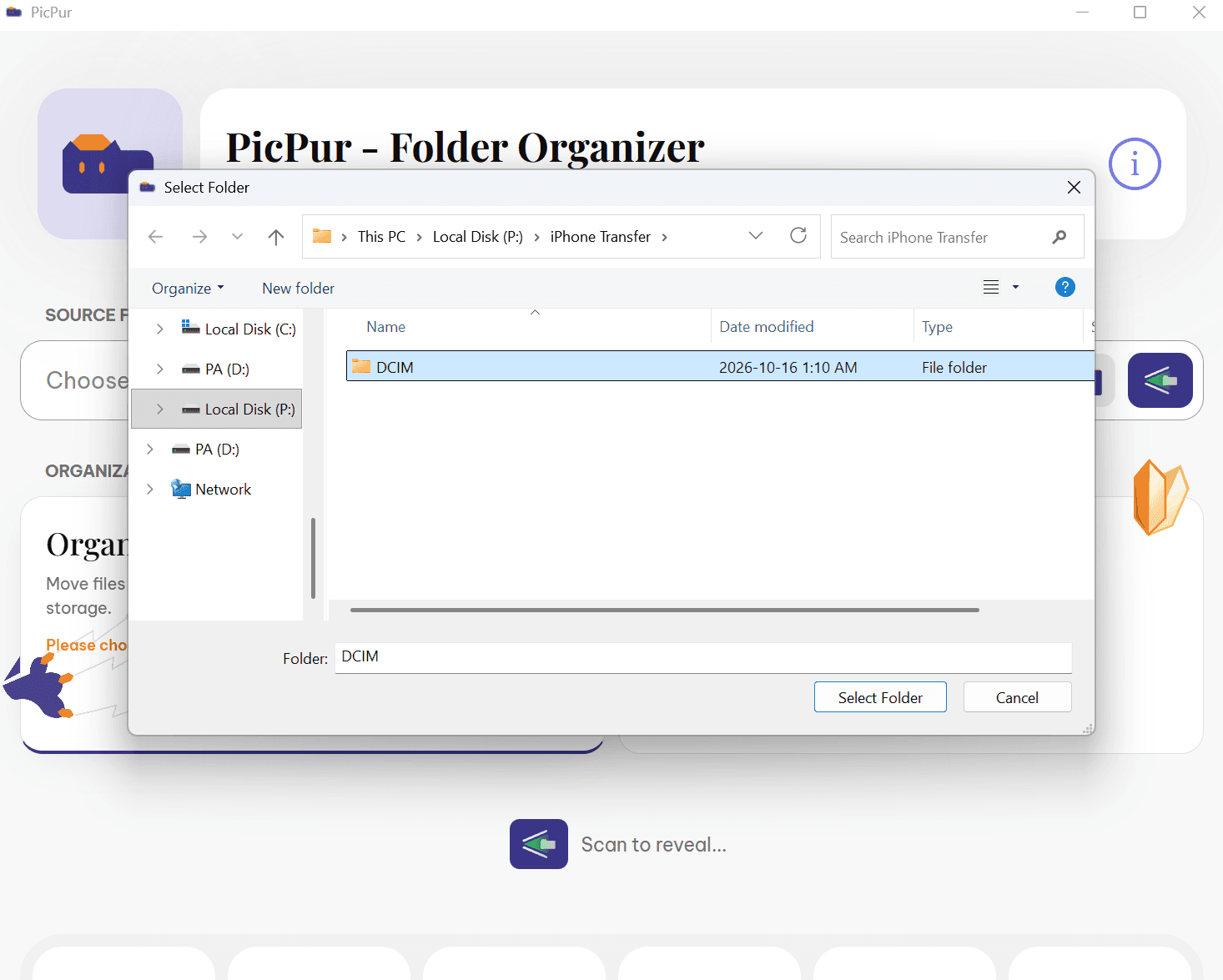
It should feel like an app, not a website that opened in a window.
I built it with PyWebView so it runs as a real desktop window and uses the normal Windows folder picker, instead of feeling like a webpage. Since the app is working with your files, it should feel like a regular program on your computer.
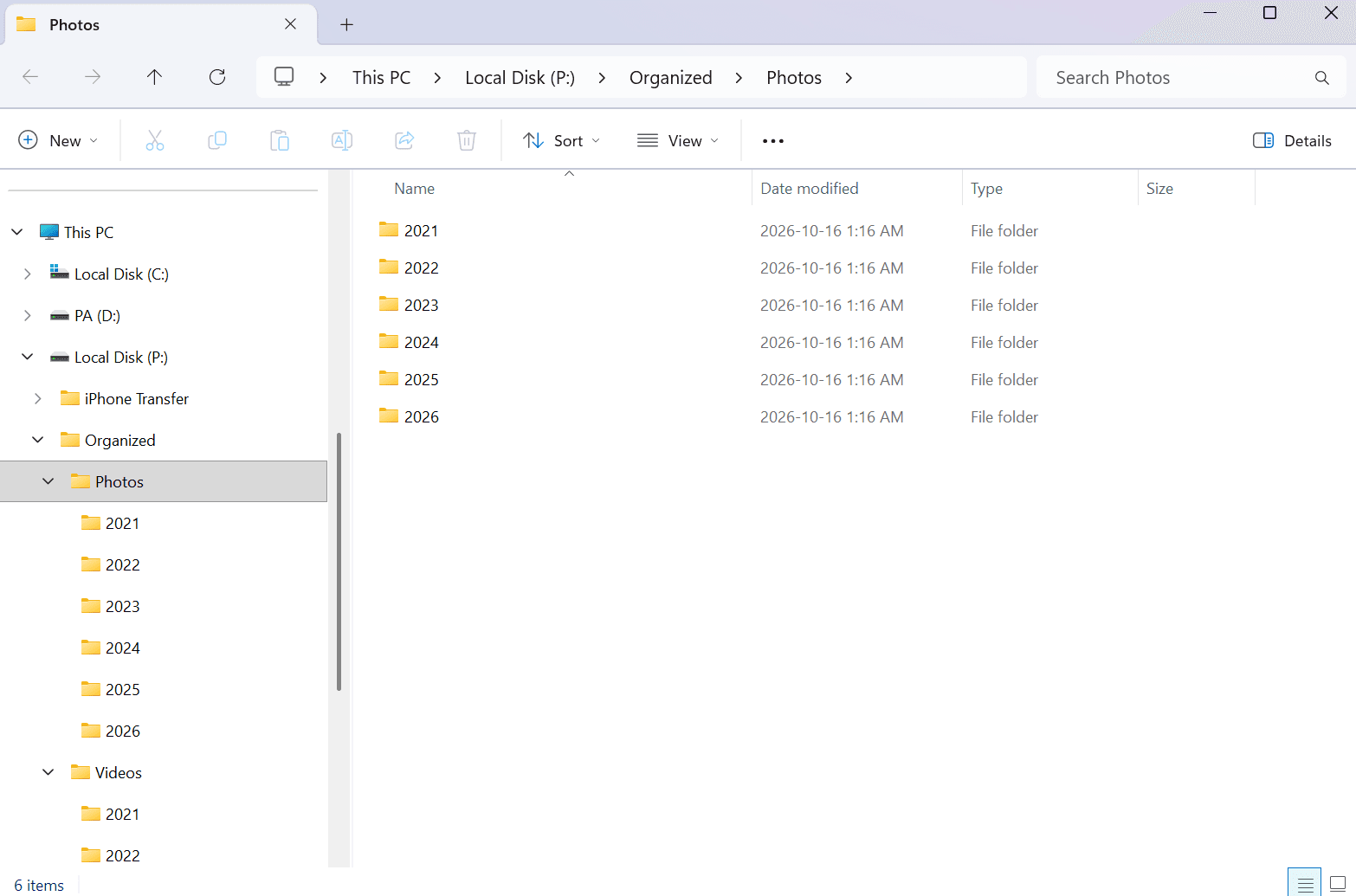
“Would I actually run this on my own photos?”
The bar I set for this was pretty simple: would I run it on my own photos? It passed. That sounds like a low bar, and it kind of is, but for a tool that moves your files around, it is the only one that counts. If I picked it back up, the next thing I’d add is more ways to organize, like sorting by month inside each year or grouping by where the photo was taken, so people can set it up the way that makes sense to them.